Monday, February 08, 2010

Are you better than Steve Carell at using technology in the classroom?

Most people have seen at least one episode of Steve Carell’s hit show, The Office. If you haven’t seen an episode then please go here to check one out. It’s very funny stuff!

Lynn Schofield Clark in collaboration with her Innovation in Mass Communications class at the University of Denver have produced a very witty video as part of a class mini-project. It’s a parody video based on The Office. Only this time it’s not ‘The Office”, it’s “The Class”. Specifically, it is a class on the topic of integrating technology into the face-to-face classroom. There’s a beautiful write up about this video on Mike Wesch’s Digital Ethnography blog.

From an instructional design and teacher point of view there are so many little tidbits in this video that make me chuckle.


Some Lessons Learned for Teachers:
  1. Know your students; know your target market. Then respond to the needs of your students.

  2. Be cautious about using technology in the classroom; do not use technology for technology’s sake. Be sure that the use of technology in the classroom serves a specific goal to move you towards accomplishing a course or lesson objective.

  3. Don’t go to class un-prepared and without a plan – it might backfire.

  4. Let students participate in their own learning and let them take an active role in the class.

  5. Know that floppy disks are useless as of 2010!

Can you think of any other lessons learned after watching this video? If so, please leave a comment below.

Friday, January 22, 2010

Are you a Tech-Savvy Teacher?

Have you ever been asked if you are a tech-savvy teacher? Probably not. Have you ever wondered to yourself if you are a tech-savvy teacher? If you answered 'yes' then this link I am providing below was meant for you. In November 2009, Staff at Rasmussen College in the United States have compiled what they believe are the Top 100 Apps (50 for the Web and 50 for the iPhone) for Tech-Savvy Teachers. After looking it over, I must say it is a pretty good list.

I consider myself a Tech-Savvy Teacher and I have used some of the applications on this list. My top four favourites from this top 100 list are:Tech-Savvy Teacher in Action!
  1. Flickr: I've used it as a graphics repository for classes. I also routinely use it to obtain Creative Commons licenced graphics for use on this blog and in my powerpoint slides.

  2. TeacherTube: Not all the great educational videos are found on YouTube. Always check TeacherTube out as well.

  3. Wikipedia: I can't say enough about it. If you are a Wikipedia-lover then you know where I am coming from. If you are a Wikipedia-hater then I give the following challenge to you: if you find an article on Wikipedia on a topic related to your subject matter expertise and you feel the article is innacurate then PLEASE take the time to fix it. YES! *YOU* can fix Wikipedia. Stop hating Wikipedia and start fixing it instead. Your children will thank you for this when they grow up.

  4. Facebook. If you are a teacher and you are not on Facebook then you are out of the loop. Get into Facebook if you want to be Tech-Savvy and you want to learn how your students use digital communication. Let your students contact you on Facebook mail or chat with you using instant messages on Facebook chat. You'll be amazed at how many quick questions can can answer for them in an evening. This definitely promotes their learning!

Every Tech-Savvy Teacher will have applications that they love that are not on this Top 100 List. So my Top 4 favourites that are NOT on this Top 100 list are:
  1. Blogger: I've been writing this blog, eLearning Acupuncture, using Blogger since 2004. It's a great blogging tool that's easy to use and stable.

  2. Twitter: I have learned so much by watching other people's Twitter post on the subject of Educational Technology. If you want to be Tech-Savvy get into Twitter.

  3. Delicious: It organizes all your Internet bookmarks (you can check mine out here) and it serves as a sharing tool for information on the web. I love looking at what web pages people in the field of Educational Technology are bookmarking. I have found some hidden gems this way.

  4. PollEverywhere: If you are doing presentations and you want to engage the crowd with a 'clicker question' then get them to use their personal cell phones or laptops to participate on the fly. Fantastic tool that has wow-factor every time.

I could go on and on but I promissed myself I would stop at my Top 4 (*smile*)

Are you a Tech Savvy Teacher? What are some of your favourite apps? Leave your ideas in a comment below.

Tuesday, January 19, 2010

Do *more* with clickers to engage students

It’s the beginning of term and I am planning against to use an audience response system in my class (i.e. clickers). If you are a regular reader of my blog, you will know that I like to use the student’s own cellphones as their clickers (see here). They love it!

My twitter feed has brought me a few good tips and tricks about best practices for writing clicker questions, most of them from Derek Buff. He’s the author of Teaching with Classroom Response Systems: Creating Active Learning Environments. He recently wrote two good blog posts on the subject. The first is a collection of resources from others and the second is a synthesis of Derek’s own 9 best practices for writing clicker questions.

I’ve got another ‘potential’ best practice that I am trying out this term. I am offering bonus marks to my students to formulate a clicker question for me. What I ask them to do is to formulate a potential clicker question for me when they are doing their readings for the week and then to post their suggested question to a public discussion forum on the class website. I explicitly ask them not to divulge the answer in their posting. Every student who submits a question will earn 0.2 bonus marks that week. I will then select one (or more) of the student submissions and use it in class. If I use a student’s question in class, they will get triple the bonus marks for that week!!! I will run this bonus mark program for 12 weeks so each student has a potential of 2.4% bonus (or more if any of their questions are selected for use in class).

I feel this activity gives students a lot of incentives to promote their learning in a positive environment:
    http://www.flickr.com/photos/84856173@N00/2523651888
  1. It gives students yet another incentive to do their readings before they come to class.

  2. It builds a question bank of multiple choice questions on the class website which could serve as a useful study-tool for test preparation.

  3. It engages the student. It gives them a feeling that they are contributing to the classroom learning community.

  4. It shows students that the instructor values their contribution to the class - especially when student authored questions are formally used in class.
What do you think about my ‘potential’ best practice in using clickers in class? Do you have one of your own? Please leave a comment below.

Tuesday, December 15, 2009

Free PD - Focus on your Foundation

As an instructional designer I routinely receive questions around common themes: course design, teamwork vs individual work, assessments, rubrics, best practices in conducting discussion groups, team-based learning, etc. So I am always on the look out for free resources that can be good references when helping instructors in their practice of teaching. A good resource just came across my desk this week from Queen’s University. It’s called their Focus on Foundations program. The objectives of the program are to:
  • Promote conversations among instructors about teaching
  • Encourage the exchange of ideas and practices related to teaching
  • Encourage instructors to explore alternative teaching practices
  • Allow instructors to serve as resources for one another

The great thing about this program is that it is comprised of nine core self-study modules that are freely available to anyone. You don’t need a username, a password or anything. There is no need to register whatsoever. You can painlessly go and study these modules and learn all kinds of interesting ideas about these topics:
  • Assessing Student Learning
  • Course Design
  • Evaluating Teaching
  • Inquiry-Based Learning
  • Lecturing
  • Scholarship of Teaching and Learning
  • Teaching for Active and Deep Learning
  • Teaching with Discussions
  • Team/Group Learning

This is definitely worth adding to your Delicious Bookmarks so that you can visit this website on a rainy day. Awesome. Special thanks go to the staff at the Centre for teaching and learning at Queen’s University for providing this open access material to the world. That’s my kind of professional development resource!

Do you know any other fantastic resources like this? If so, be sure to leave a comment below.

Monday, November 30, 2009

2009 Edublogs Awards

The 2009 Edublog Awards are open for nomination!

This is our chance to nominate and celebrate 'the achievements of edubloggers, twitterers, podcasters, video makers, online communities, wiki hosts and other web based users of educational technology.'

Here are the categories that I would like to submit nominations for:

* Best individual blog - Making Change by Cathy Moore(http://blog.cathy-moore.com/)
* Best individual tweeter - Sydney-Eve Matrix @sidneyeve
* Best resource sharing blog - Jane Knight - Jane's E-Learning Pick of the Day (http://janeknight.typepad.com/pick/)
* Lifetime achievement - Stephen Downes - OLDaily - (http://www.downes.ca/news/OLDaily.htm)

If you have a blog and you want to nominate another blog for one or more 2009 Edublog Award, then please read these details.

Nominations close December 8th, 2009.

Thursday, September 24, 2009

Twitter in your Teaching

Is it just me or are you seeing the word ‘Twitter’ almost everywhere these days? I live in a semi-rural community and last weekend I was leafing through my local free community newspaper and I stumbled across a quarter-page announcement saying that I can now receive updates via their Twitter-feed. Wow! When the local community-based newspaper has a twitter feed that really emphasizes the fact that Twitter is everywhere!!!

So if it’s everywhere you have to ask yourself, how can you use Twitter for Teaching? Well, luckily other people are asking themselves that question too. I received an email from Amber Johnson who recently wrote an article on the subject called “50 Terrific Twitter Tutorials for Teachers”. She put me in the loop about the article because one of the blog posts on e-Learning Acupuncture (this blog post about Twitterfall) was selected to be included in the list of 50 terrific items.

If you are looking for ideas and information on how to use Twitter in your teaching then this article is certainly a good starting point. If you have your own idea about how to use Twitter in your teaching then be sure to let us know about it by leaving a comment below.

Monday, September 14, 2009

Social Media is BIGGER than you think? Are educators lagging behind?

This fantastic blog post and associated YouTube video embeded below really made me think about how marketers and business people view the fundamental shift in how the Internet is being used. The read/write web of Web 2.0 and the social media phenomenon sweeping our culture is fundamentally transforming how people use the Internet. Smart business people and smart advertisers are taking notice and taking action. What are educators doing? Are we using Facebook, Wikipedia, and YouTube in our classes? If not, are we lagging behind?


Watch the video and tell us what you think by leaving a comment below. Are educators lagging behind? Are we taking action? Is it the right type of action?

Wednesday, September 09, 2009

How do I learn to teach online?

For some teachers, there are misconceptions about the process of teaching online. Some think teaching an online course is exactly the same as teaching in the classroom. Well, as a practitioner of both types of teaching I can attest that they are significantly different processes. So if you have never had the opportunity to be a student in an online course or have never had a mentor who can teach how to teach online then where do you gain the knowledge and skills?

There are few different answers to this question. You could go to school to learn this material. That’s what I did. However, if you don’t have the time to invest in that route, luckily there are many resources your can read that will help you develop and improve your skills. Today I came across one particularly good one. It is the Online Handbook for the University of Colorado Denver and it is available freely online.

It has four major sections: 1) trends and issues in online learning, 2) examples technology in action in online courses, 3) a brief overview of 25 emerging e-Learning tools that you can use in your teaching, and 4) additional resources for the online teacher.

This document is fantastic. It covers a wide breadth of topics from instructional design, multimedia, Web 2.0 tools, social networking, blogs, twitter, collaborative work online and has a significant amount of material on how to effectively use online discussion in your course.

If you are new or experienced in teaching online, this will be valuable reading. There is something in here for everyone.

Monday, August 24, 2009

Short Cuts for Converting Classroom Courses to Online Courses - Ask an Instructional Designer

I recently answered an email question from a reader named Barb that might interest other readers as well:

Question:

http://www.flickr.com/photos/61787893@N00/275371357Hi Eric,

I ran into your site through the Internet and would like some advice on the following.

I am a trainer and am currently working with a couple of other trainers on converting our Instructor led courses into online self paced courses using Captivate.

We know there will be work to re-design some of the content etc. However, I am looking for shortcuts. the content has already been approved by SME's.

I wondered if we could "storyboard" the content out in Powerpoint and then bring it into Captivate. In other words I want to avoid extra steps. Instead of using Microsoft Word to storyboard content, we would just place the graphics and text within a Powerpoint world and then bring it in. Or do we even need to use Powerpoint?

Your suggestions would be appreciated.

-Barb


Answer:

Hi Barb,

You have a good question here. In my view it all comes down to how you envision the finished product meeting the needs of your target market. You mention that you are developing instructor-led training into an online self-paced course; however, you do not mention the topic of the course, the types of students that you are serving, or your proposed course delivery strategy.

So I will make a few of assumptions in answering your question.

Assumption 1: the topic of the course is some type of training on how to use a computer system or a piece of software.I make this assumption (or guess) because you are choosing an audiovisual-based authoring tool like Adobe Captivate to present your training.

Assumption 2: your students are established employees at a company that will be required to use this new software or computer system in their job.

Assumption 3: if you are looking for shortcuts on how to re-engineer existing classroom materials for use in a online self-paced course, then I assume your time is limited to complete this project. Perhaps your budget is limited as well.

Assumption 4: the SME-approved classroom materials that you have available to you are print-based materials. Perhaps in MS-Word format.

So if these above four assumptions (or predictions!) hold then this is my advice to you.

Use a print-based framework for your finished product; however, augment the print-based material with short audio-video tutorials (created with Adobe Captivate) that show students the piece of software in action. By choosing this route, you take a major short-cut of being able to re-use some of the existing course materials in MS-Word format. You only need to invest your energies in augmenting the paper-based course materials with appropriate audio-video tutorials. This solution also circumvents the need to use Powerpoint. Last I checked people still prefer reading material on paper vs. the computer screen.

In the end you can upload a series of Captivate Videos to YouTube and then mail-out a paper-based workbook to students. That way students can keep the workbook and consult it when they are back in the workplace for 'just in time training', and similarly, the YouTube videos are accessible 24/7 from work or at home. There is no need for you to have a specialized learning management system in place to deliver such a course either. That saves on budget as well.

I hope this answer helps. Take care.

-Eric

Do you have other recommendations for Barb? If so, post a comment below.

Wednesday, August 12, 2009

Technology Training Videos for Teachers

Let’s face it, whether you are a teacher, instructional designer, teaching assistant or multimedia developer, the sheer amount of new tools being released on the Internet makes it difficult to stay up to date with what’s new and what can apply best to your specific discipline. So instead of wasting hours randomly searching for new things when you have a spare moment (or clipping Dell coupons), I would suggest you consult regularly with Russell Stannard. He runs a great site called teachertrainingvideos.com. Already he has a multitude of great videos that I have sampled, including videos on topics like:
  • JING-Fantastic Screencasting Tool
  • Easy podcasting
  • Introduction to Moodle
  • Make on-line surveys
  • Downloading from YouTube
  • How to use Blogger
  • All about Delicious
  • Photoshop basics
All free for you to use. Russell Stannard is a principal lecturer in Multimedia/ICT at the University of Westminster in London England and his academic focus is on English language teaching. He has taken the time to create several videos outlining tools and websites that are specifically useful to English language teaching, such as:
  • Amazing 3D dialogue builder
  • Best ELT sites 2008
  • Best pronunciation Sites
  • Great dictation site
  • Voicethread presentation tool
  • Review of the best ELT podcasts
So overall he provides a fantastic repository of short videos that can help you in your research for useful tools in your teaching related practice. You can keep up to date with Russell’s new material by either subscribing to his email newsletter on his website or following him on twitter.

If you find any of these resources especially useful, let us know by leaving a comment below.

Friday, July 24, 2009

Mobile Technology: Bigger than the Internet and the PC combined

Mobile technology is going to change your life and the change has not really begun yet. That's the take home message from Elliot Soloway (Professor, Univ. of Michigan) and Cathie Norris (Professor, North Texas Univ.). In their fantastic and thought provoking video, called A 21st Century Education: Educating the Mobile generation, that documents a road trip through Texas and Louisiana to see firsthand how mobile technologies are being used in school, Elliot and Cathie argue that mobile technologies in use today are initiating a fundamental shift in education. People enjoying iPhones - Image credit: http://www.flickr.com/photos/48600091327@N01/853455312It's the beginning of a deep kind of change in our life where mobility adds the ability for people to walk around and have all the knowledge with them regardless of where they are: office, classroom, car, park, mall, sidewalk, etc. This amazing new resource is available 24/7 in the palm of your hand. Once in place in the culture of our society, so many constraints will be removed from our daily lives. The immediacy of information provided by mobile devices may accelerate learning because the notion that formal learning can only be done in schools will erode fully. Learning will happen everywhere and in every context with this new resource that was not there before.
"It's an evolution - not a revolution." - Elliot Soloway, 2009
Watch the video and let us know what you think by leaving a comment below.

Thursday, July 16, 2009

From World of Warcraft to Second Life – Teaching Science with Immersion and Excursion

I recently attended the SLOAN-C International Symposium on Emerging Technology Applications for Online Learning in San Francisco. It was an intense conference with many fantastic talks. One particularly interesting talk was done by Mary Anne Clark, a Professor of Biology at Wesleyan University in Texas. She started her talk by telling us a story. (As an aside, I personally love talks that start with a story because I really value the learning that can come from storytelling.)

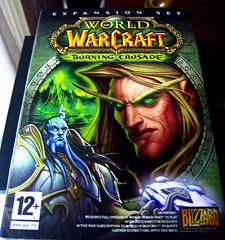
She told a story of an experience she had a few years prior where her husband had been pretty involved in playing the world’s most popular Massively Multiplayer Online Role Playing Game(MMORPG)called World of Warcraft (WoW). If you haven’t heard about the success of WoW then all you need to know is that over 11 million people pay a monthly subscription to play this online game - the revenue is astounding and it speaks to the quality of the game experience! Mary Anne’s husband would constantly try to convince her to play WoW with him. As a non-game player, Mary Anne could not really understand the appeal of the game. For example, one week she would come into the computer room and her husband would be playing the game. His character in the game would be in the middle of a quest busily fighting wolves for example. Then she would come into the computer room a week or two later and her husband’s character in the game would be still doing similar things – only this time he was fighting bigger wolves. The attraction to the game for her was not clear. However, after some time she finally got tired of his pleading and made him an offer he couldn’t refuse: she would play WoW with him for the summer when she wasn’t teaching. It didn’t take long for Mary Anne to finally understand the attraction of WoW once she started playing. She describes it “an immersive experience” where you begin to feel like the character you are playing in the game is an extension of yourself. WoW challenges players to make their characters perform heroic acts, great feats of courage, and overcome challenging tasks in the game and you can do all these things by yourself or with the assistance and collaboration of other game players. The social interaction between players while playing WoW is a very interesting and engaging facet of the game. In fact, the entire experience of playing the game is a very large exercise in learning. As a player, you have to learn the etiquette of WoW, you have to learn how to complete tasks, learn how to improve your character’s skills, learn how to interact with other players, learn how to make money to outfit your character’s needs, learn about the monsters you will be combating, etc. All the while, you receive immediate feedback from the game in the form of virtual currency, precious items and even the enhancement of your “in-game” reputation among other players – all highly motivating features that encourage game players to continue playing.

After some time, Mary Anne realized that with so much learning going on by WoW players, wouldn’t it be convenient and spectacular if WoW could be used as a teaching tool in her academic field. Unfortunately, her academic field was not “Monsters”!

That’s when she turned to a different virtual world product: Second Life. I’ve written about Second Life a few times before on this blog (here and here).

Me in Real Life outside Linden Labs in San FranciscoMary Anne began developing what would become today Genome Island. This location in Second Life now hosts many learning objects and activities that augment introductory courses in genetics and biology. Much like WoW, students create a virtual character in Second Life and with this character they can personally interact with objects and perform the learning activities that Mary Anne has created. They can conduct virtual experiments and collect the data that they produce. Consequently, after conducting the experiments, students can summarize the data in a convenient way (such as an excel spreadsheet or a word document), compare it with their classmates and analyze their findings in a real-world lab report.

Genome Island is segmented into four main sections. The Abbey and Gardens deal with experiments and concepts about genetic inheritance patterns. The Tower has learning activities relating to human, bacterial and Drosophila genetics as well as molecular biology. The Gene Pool is still under development and will have models for population genetics. The Terrace overlooks several exhibits demonstrating animal models, etc. Lastly, the Atelier is the ‘sandbox’ for Mary Anne herself where you can occasionally watch her (or her colleagues) in the process of building new learning activities for Genome Island.

Mary Anne has successfully used Genome Island two major ways to enhance learning in her genetics courses. The first, excursion, is simply to demonstrate live in a face-to-face classroom of students some learning objects on Genome Island using her Second Life character. The second, immersion, is to have students create their own characters in Second Life and perform the tasks themselves either in a computer lab or at their home. Both the immersion and the excursion methods have their own pros and cons, and both can be used successfully from a student point of view. Student feedback clearly supports this. For example, some students commented:
"The Second Life made activities more hands on, and while we did a lot of reading it never seemed like it."

"I love the fact that it is REALLY hands on. It isn’t like sitting in a lecture class, you really end up enjoying all that you are learning and it really makes you want to learn MORE."

"By the way this is awesome! I've never done anything like this in relation to science, let alone had this much fun!"

My Character in Second Life sitting on a bench in The Tower on Genome Island.  Above my character is a classic photo of the DNA Detectives Watson and Crick. The power of virtual world immersion and excursions when applied to a learning context is clear. The challenge is ensuring good instructional design is in place so that students can move past the technical requirements or novelty of using the virtual world software and clearly focus their time on the well-crafted learning activities that these worlds can host.

Genome Island is publicly accessible in Second Life. So by creating a free Second Life account and by creating your own virtual character, you can go check out all the learning going on for yourself. While you are on the island, be sure to say ‘hi’ to the character "Max Chatnoir" if you can find her - that’s Mary Anne herself!

Do you use Second Life (or World of Warcraft?) in your teaching? If so, tell us your experience by leaving a comment below.

Monday, May 25, 2009

Twitterfall - letting the web work for you

Why reinvent the wheel? If you need to use the Internet to do research on a particular topic, you can leverage other people’s research efforts using social media tools (i.e. the stuff of Web 2.0). There are several social media tools that can help you. One example is Twitterfall. It’s a free web service that taps into the proverbial ’river of data’ generated by the Twitter data stream and fishes out for you messages that fit a custom search that you create. Ok, so before you jump up and down and say to me that you are anti-Twitter, that you don’t have a Twitter account and that you don’t want anymore so-called ‘tools’ that consume more hours of your day to manage, etc, I would ask you to just continue reading this posting (*grin*). Twitterfall allows you to tap into the Twitter data stream without having a Twitter account. Yup. No Twitter account is needed. So if you are anti-Twitter then you can still use Twitterfall without any problem. So here’s what it does.
Twitterfall displays the latest 'tweets', or message postings, from the millions of Twitter users. So if you are researching the subject of education for example, and you want to see what people are saying right now about it, then you can go to Twitterfall and setup a custom search for the word ‘education’ and watch the results unfold before your eyes.

Try it. Here’s a couple of tips. When you first visit Twitterfall, it will default to displaying recent tweets on the Top 10 recent topic trends on Twitter. So immediately a stream of messages will come down on your screen. If you are not interested in these Top 10 trends, then you can easily configure Twitterfall to stop displaying these tweets by mousing over the ‘All Terms’ phrase at the top if the ‘Trends’ box and un-checking the box beside ‘All Terms’. That will end the flow of messages on the screen. Next configure Twitterfall to display tweets on the subjects that you are researching. On the left hand side of the page, find the ‘Custom’ box. At the bottom of the ‘Custom’ box is a search field with an Add button. Type keywords into the search box that you want to monitor such as ‘education’, ‘edtech’, or ‘technology’ and click the checkboxes beside each. Now ‘tweets’ will be displayed on the screen that follows your custom search. By watching the Twitterfall stream for a few minutes you will undoubtedly find some interesting links, resources and opinions on the subjects you are interested in.

On the Twitterfall website they have a link to a short 4 minute tutorial showing some additional Twitterfall features.

Let us know your impression of Twitterfall by leaving a comment below.

Image credit.

Friday, April 24, 2009

Fantastic File Converter

Via www.smashingapps.com, please welcome CometDocs - Free Online File Converter. It’s a god-send because it accomplishes three major goals:

  1. It’s a fantastic file conversion utility that has over 50 conversion options. Popular options such as converting from PDF to MS-Word, PDF to Excel, and html to PDF are just some examples.

  2. It’s free and it’s online. So no software to download and install on your computer and no fees to pay.

  3. It works. I know because I tried it. It was easy to use and converted each of my files within one minute.

CometDocs is definitely worthy of being bookmarked on your Del.icio.us account. (If you are new to Del.icio.us then view this video).

Image credit here.

Tuesday, April 14, 2009

Solve problems with screencasting

Screencasting can be useful in distance education. Recently, I met with colleagues who are designing a distance course in physics. In this particular course, the emphasis is on mathematical problem solving. When they deliver the course in class, they spent the first 15-20 minutes of each lecture thoroughly going over solutions from previously assigned homework problems. Students report that this investment of time in problem solving in the classroom really helps them master the subject matter. Consequently, this guided problem solving aspect was the central factor being discussed at a brainstorming meeting about the course.

Remote screencasting was the front runner in the discussion. It’s not a new concept – screen casting has been around for years. In January 2005 I first wrote in this blog about a now famous screencast by John Udell on Wikipedia. If you need more info on what a screencast is, check out the Wikipedia article on the subject.

So, I put together six phases for creating a good screencast for use in distance education.
  1. Create a storyboard. Most people already have a good foundation for a storyboard – a pre-existing PPT slide that is being used in class. To start, make any adjustments to the existing PPT slide that you feel would help illustrate a concept to the learners who will be viewing the screencast remotely. For example, add in some extra animation objects that might emphasize some part of the concept you are trying to explain. One additional consideration is that if your screencast will be above average in length (say more than 5 mins) then try to split your content onto two (or more) PPT slides. Keeping the length to 5 minutes per slide, or less, will make the audio editing and annotation phases (see below) slightly less cumbersome to perform.

  2. Write a script for your screencast in your favourite word processor. Invariably, the act of writing the script brings better ideas to the forefront. What usually occurs is that you
    require edits to your PPT slide as a result of your ‘new and improved’ ideas. It’s far less work to make edits to your PPT slides at this stage then it is in later stages in the screencasting process.

  3. Record the audio using your favourite screencasting software (eg, Articulate, Adobe Captivate, etc.). There is no need to use stand-alone audio recording software (such as Audacity, for example) as most modern screencasting tools have audio recording and editing capabilities built-in.

  4. Make audio edits using the screencasting software to remove any unwanted ‘um’s and ‘ah’s, etc.

  5. Annotate the screencast with pointing arrows, mouse pointers, shadow boxes, as needed. These types of annotations replace the instructor’s ‘pointing finger’ in the classroom and can be very valuable to learners at a distance. The types of annotations possible will vary depending on the specific screencasting software you are using. Articulate has more choices for annotations types when compared to Adobe Captivate.

  6. Publish your screencast in Flash at the touch of a button so it can then be uploaded to your learning management system of choice. Remember to archive your source files onto a network drive in case you ever want to make future edits to the screencast.

If you follow this process, your first good quality 5 minute screencast can be produced from start to finish in one morning or afternoon. Also, the more you do it the faster you will become. So if you are planning to create a series of these learning objects, budget 3 hours to produce the first one, and budget half that time for the rest.

Bonus Tip: avoid creating screencasts over 20 minutes in length. The distance learner has a shorter attention span than the classroom learner. The at-home temptations of checking email, grabbing a snack, checking the hockey scores, or tucking a child into bed are far too great (*smile*)

If anyone reading this has any further tips or tricks, please let us know by posting a comment below.

Image credit here.

Wednesday, March 25, 2009

Do wikis work for any topic? How about math?

Sabah Karam from Morgan State University in Baltimore, Maryland, recently wrote to me asking:

“I have been doing research on how wikis can be used to teach students
how to do mathematical proofs…. I would like to know if you have any thoughts on if you think we this is a realistic effort and, so, how we can achieve this goal.”

Great question! I personally believe that a wiki can succeed on any topic. A wiki is merely a tool for collaborative document authoring by a group. The more important factor that determines the success of a project is the vested interest of the team members (or community) working on it.

So to ensure success in a project like collaborative authoring of mathematical proofs, efforts should be placed into:

  • defining the output (deliverable) and the timelines of the project

  • defining your community (i.e. team members) that will work on the project

  • selecting the right tools to enable the community to produce the desired product in the timeline specified (a wiki is one example of a good document collaboration tool)

  • providing a convincing argument to members of the community to educate them about the value of the tool(s) that were selected for the project

  • providing training on these tool(s) for those members of the community who need it

  • overseeing the completion of the deliverables folloowing the agreed upon timeline

On the subject of wikis that concern themselves with mathematical proofs, there are two that I know of Proofwiki and PlanetMath. Does anyone else know of any? if so, leave a comment below.

Image credit.

Tuesday, March 24, 2009

Text messaging in your teaching

Note: Please welcome this guest post by Scott Morrison – Instructional Designer at the Royal Military College of Canada in Kingston, Ontario.

The Site 2009 conference in Charleston South Carolina was a real awakening for me. During this session I saw several themes emerge and was presented with some very practical information. My sense from the conference was that we have entered an era where the speed at which we can collect, or in the case of the educator, give information is what will lead to our success. Specifically I mean we are not in an age where cell phones are new technology and we train and then deploy new ideas. During a round table discussion Kevin Thomas, Ph.D., Assistant Professor, Annsley Thornton School of Education, drove this point home when he discussed how he uses cell phones in teaching.

Cell phones are not new technology to the average North American high school or college/university student. They use them frequently and well. Further, they often carry them with them at all times. This presents a unique opportunity for us to quickly and easily interact with our learners. Instead of placing content, notices, or updates on an LMS and hoping that your students find it in time, it is possible to email that material in the form of a text message to your learners. The benefit is that they have the information instantly, it is portable, and it is easy for educators to deploy. Also, the learner doesn’t have to go and seek this information and it saves them time. As was hinted at during the conference LMS (Learning Management System) may be going the way of the dodo bird. Although I don’t necessarily think that will happen anyway time soon, I do see this being a useful tool that isn’t bound within the constraints of the LMS.

To do this create a distribution list for the students in your class using their cellphone numbers and providers. For those that do not have cell phones simply collect email addresses. To enter the phone to text address in your email client consult the service provider's website. For example:
10didigitphonenumberhere@pcs.rogers.com
10digitphonenumberhere@msg.telus.com
Keep in mind that your messages can only be 180 characters long. Thanks to Kevin Thomas for his wonderful idea and Eric Tremblay for suggesting we share it here.

If you have used text messaging in your teaching, please share some examples of the types of messages you send to your students by leaving a comment below.

Image credit: here.

Wednesday, March 18, 2009

Web 2.0 can knock your socks off!

I participated in a great online talk yesterday by James Falkofske, Director of Online Learning, St. Cloud Technical College (here's a link to James' blog). His talk was titled: Easy Steps for Expanding Desire2Learn with Web 2.0 Tools. In general, I love talks like this. There is always some little gold nugget that I can take away and use. Well, in this particular talk, I took away two:
  1. A web application index that catalogs all kinds of examples of Web 2.0 tools: Go2Web20.net. If you go to that page you will see that each application indexed has a short description, is tagged with key words for searching and has a link to the site where the application resides. Go2Web20.net even has an RSS feed so that you can keep track of recently added applications. Nice! There are lots of goodies here and with the increased pace of appearance of Web 2.0 tools, the RRS feed gives you a great way to stay informed.

  2. A slideshow application that will knock your socks off! Seriously. It’s called Animoto. Using the photos you provide, it will make a 30 second professional looking slideshow (with fancy transitions) and a soundtrack. It has a few ways to output the video for you – including automatic export to YouTube! Slick! It even has an iPhone App so that you can build your video on your iPhone instead of your computer. Neat. For a fee, it will let you make much longer videos. It’s a great application to add to your digital storytelling toolbox for you or for your students – the production value is high. Want to see a demo of a video I made myself using Animoto? Check it out here.

    Also, Animoto itself keeps a small collection of case studies showing Animoto videos being used in education to give you some ideas.
Do you have a favorite Web 2.0 app, or do you have experience with Animoto? If so, let us know by leaving a comment below.

Monday, March 09, 2009

Make your own cartoons online

Ever wanted to be a cartoonist, but can't draw? Welcome to my world. Anyway, I came across ToonDoo.com today and this website is letting me live my dream (free of charge!). I can now easily make cartoons by simply dragging and dropping backgrounds, characters, and props, etc. Try it. You'll like it. Here's a sample 3 panel cartoon that I made - it took me about 10 mins. Not bad for a 1st time.

\Toon\

Tuesday, March 03, 2009

Love your students and they will love you back

If you read this blog, you know I’m a big fan of Micheal Wesch. I’ve never met the guy but I have watched him quite a bit in his YouTube videos. Late in 2008, he received the Professor of the Year award from Council for Advancement and Support of Education (CASE) and the Carnegie Foundation for the Advancement of Teaching (CFAT). He delivered a short acceptance speech on Nov 20th, that is worth watching. He’s introduced by a former student who clearly admires Dr. Wesch and goes on to explain the wonderful role model that he is. That's always a nice feel good moment. Then Michael takes the podium and at the end of his acceptance speech, he shares with the audience a mantra that he says to himself every time he talks in front of a group of people: “Love your students and they will love you back.” They were words of wisdom from his wife seven years ago. Spectacular!

It’s a great mantra. So many times, teachers, professors and instructors get bogged down in the technical details and mechanics of how their course is running that they can sometimes forget that for learning to occur, they have to genuinely care about their students. So having a mantra like this that is used regularly can be of great service in bringing this idea to the forefront of a teacher on a daily basis. Students are important – they need to be cared for - without them where would teachers be?

Image credit: here.